
LinkedIn provides additional post metrics, including saves, sends, reach, profile views, and followers gained thanks to a post. These advanced statistics are available in AuthoredUp within the table on the Posts tab.

However, to collect the data, it is not enough to simply scroll through the feed – you need to click on each individual post for the data to be gathered.
There are two ways to collect advanced post stats...
First method
Click on the desired post within the Posts tab.
In the Stats block in the top right corner, click the Collect advanced stats button.

You will be redirected directly to the Post analytics of the selected post.
If the data has been successfully collected, the button will change to Refresh stats. By clicking it, you will be able to retrieve the most up-to-date data at a later time.
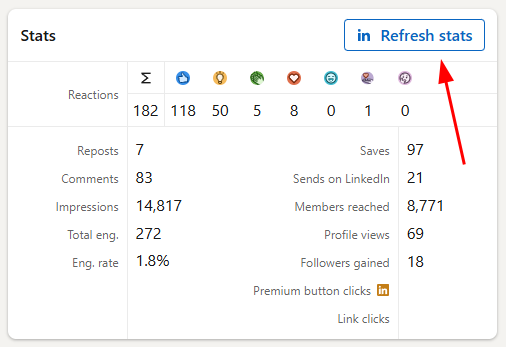
By clicking the left or right arrow, you can move to the previous or next post and collect data for it as well.

Second method
If you are on the AuthoredUp platform, click the LinkedIn logo to open the post in a new browser tab.

If you are using the extension, click the arrow to minimize AuthoredUp and open the post within the same browser tab.

Once the post is opened, you need to click the View analytics button.

When you return to the table, you will notice that the data has been loaded.

Please note that advanced stats can only be collected for personal profiles and groups, not for company pages. Also, new stats are available only for posts up to 1 year old.
Reach breakdown
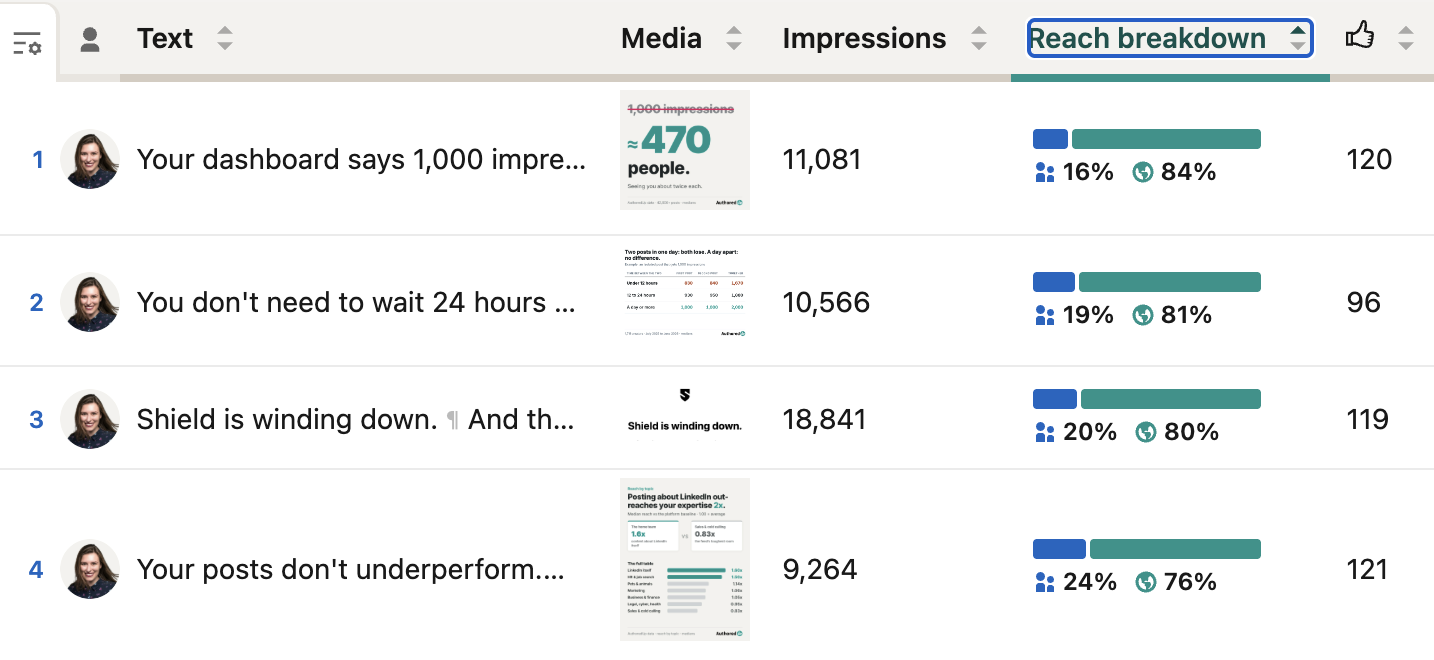
AuthoredUp also provides a breakdown of impressions into in-network and out-of-network impressions. You can find these metrics in the Reach breakdown column in the Posts table and wherever advanced post statistics are available.
If you've already collected advanced stats for a post, the reach breakdown is available automatically. There's no need to collect the data again. For new posts, or posts for which you haven't collected advanced stats yet, you'll need to collect the advanced stats first.
For more details, see In-network vs. out-of-network impressions.
LinkedIn Premium button analytics
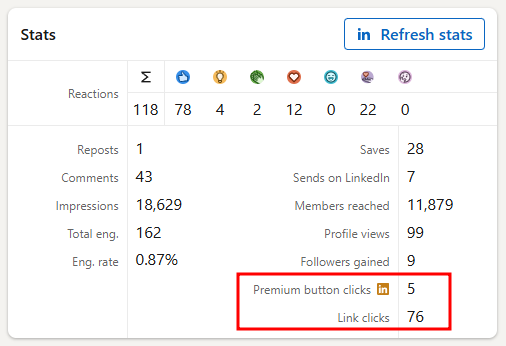
If you have LinkedIn Premium, AuthoredUp can track clicks on your Premium custom button separately from regular link clicks.
You can find this metric in post statistics, post tables, comparisons, highlights, and team leaderboards.
Customize columns
If needed, you can remove or add various metrics to the table by clicking the hamburger menu on the left side and then selecting the Customize columns button.
