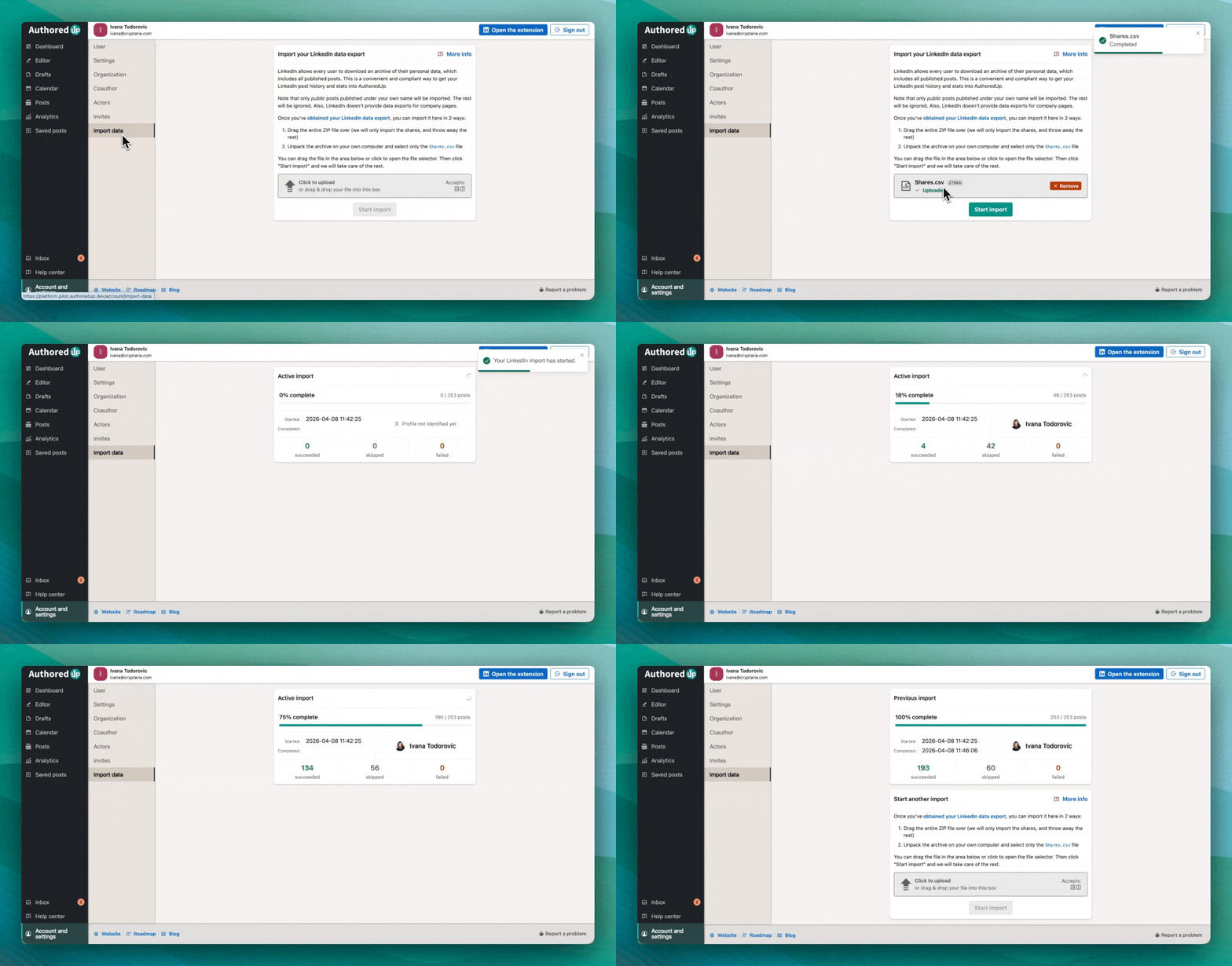
As a faster alternative to collecting your posts via the AuthoredUp extension, you can import your LinkedIn data export directly into AuthoredUp in just a few steps. Data import also allows you to connect your account without an extension.
Please note that only public posts made from your profile will be included, as LinkedIn doesn't provide data export for company pages.
There are certain limitations to be aware of: only reaction and comment counts are available via data export. Advanced post stats must be collected via the extension.
How to download your account data from LinkedIn?
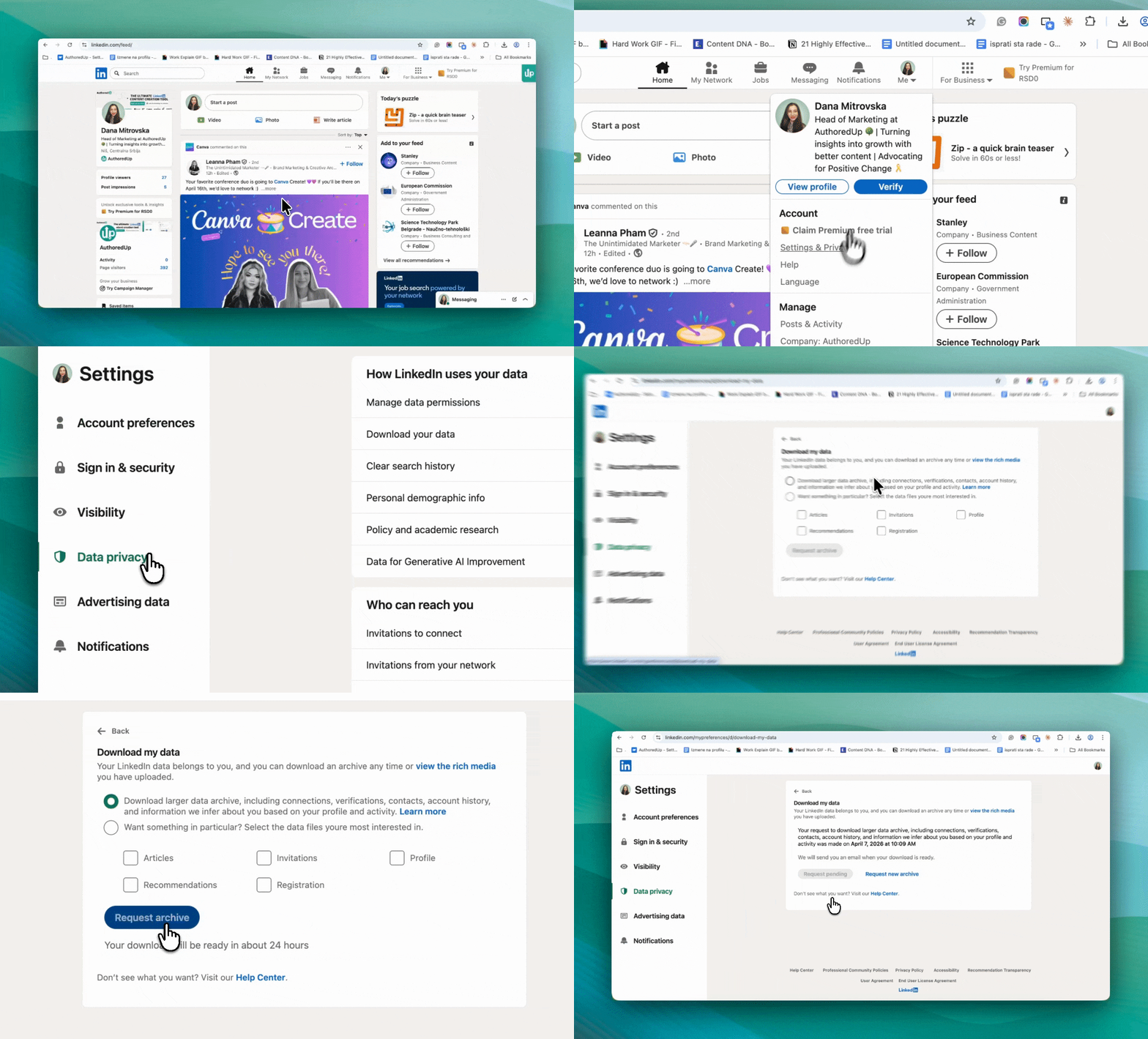
- Click the Me icon (your profile photo) at the top of the LinkedIn homepage.
- Select Settings & Privacy from the dropdown menu.
- Click on Data Privacy in the left-hand menu.
- Under the How LinkedIn uses your data section, click Download your data.
- Select the first option (Download larger data archive) and click Request archive.
Please keep in mind that generating the archive can take up to 48 hours, so some patience will be required. It will be sent to your inbox, most likely after two days in the second part of the archive. Use the link provided in the email to download the information you requested. The data will be available for download for 72 hours.
How to import your LinkedIn data export into AuthoredUp?
Once you have your LinkedIn data export ready, head over to AuthoredUp Platform > Account and Settings, then open the Import Data tab.

From there, upload the Shares.csv file from your downloaded LinkedIn archive, or simply upload the .zip file that contains it, and AuthoredUp will automatically extract all your public posts and add them to your account. Then click Start Import and we'll take care of the rest.