
The following video will guide you through every step:
- How to share a draft with your team from the Editor.
- Adding and removing collaborators from the Drafts page.
- Adjusting viewing and editing permissions for team members.
Drafts can be shared with members of your organization, making it easy to collaborate on content and work together on posts before they are published.
There are two ways to share a draft: from the editor or from the Drafts page.
Share a draft from the editor
1. Click the Share icon in the toolbar.
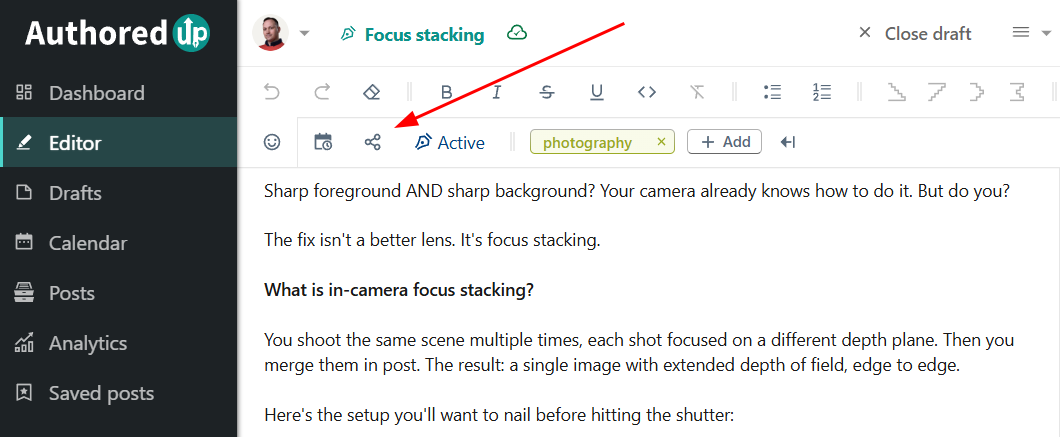
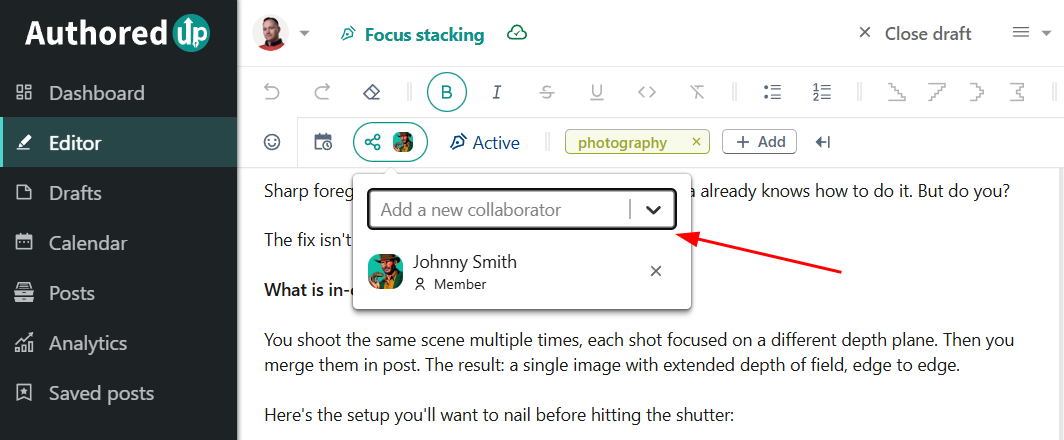
2. Pick one or more people from the dropdown menu to share the desired draft with them.
Share a draft from the Drafts page
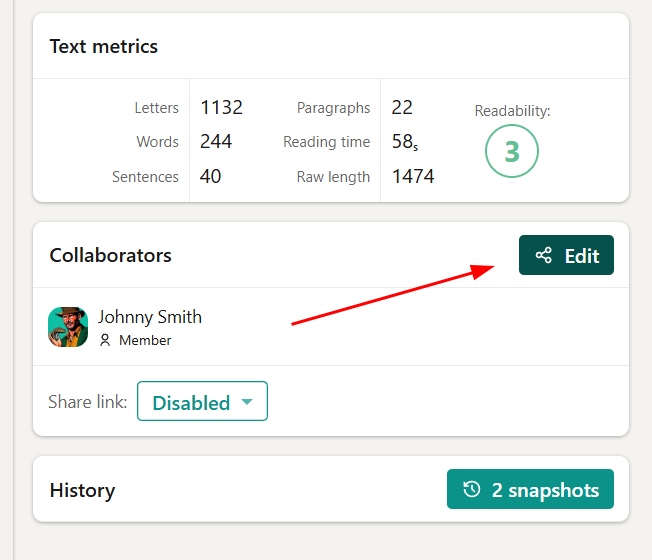
- Open the draft you want to share to access its details.
- In the Collaborators section, you can see who the draft is currently shared with and add or remove collaborators.
All collaborators on a draft can edit and add to it. If a draft is intended for a specific person, they can review it and make edits as needed before publishing.
If there is a draft conflict, for example, if a collaborator edits a post at the same time as you or if you edit the same post from two different devices, we will show you a text differences screen, similar to the one in the snapshots menu.