
AuthoredUp supports mentions of LinkedIn profiles and company pages in your posts, both in the Chrome extension and on the AuthoredUp platform. However, before you can use mentions on the platform, you need to "collect" the relevant profiles and pages through the extension.
How mentions work
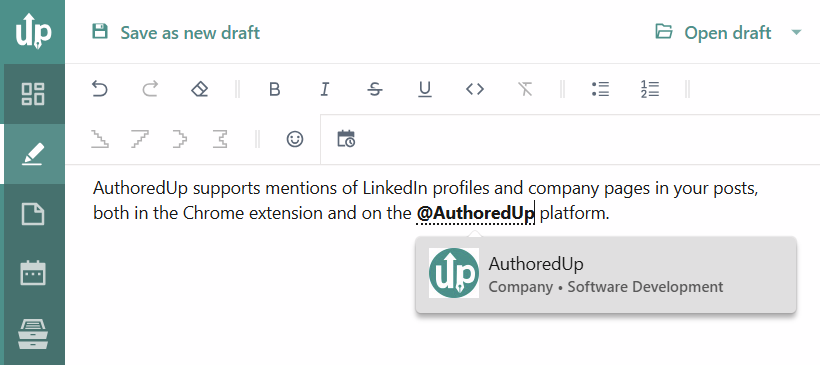
When writing posts on the AuthoredUp platform or in green mode, you can only mention profiles and company pages that have already been collected in your account. If you haven't mentioned a particular person or page before, AuthoredUp won't have the necessary data to suggest it when you type @.
The Chrome extension works differently in blue mode because it operates directly on LinkedIn. When you mention a profile or company page in blue mode, AuthoredUp retrieves the information from LinkedIn and stores it in your account. Once collected, these profiles and pages become available for mentions on the platform and in green mode as well.
How to collect profiles and company pages
- Open LinkedIn and switch to blue mode in the AuthoredUp extension.
- Start writing a post and type
@followed by the name of the person or company page you want to mention. - Select the correct profile or page from the dropdown list that appears.
Once collected, the profile or page will be available for mentioning on the AuthoredUp platform and in green mode.
Important: Select mentions from the dropdown list
For a mention to become a clickable link to a LinkedIn profile or company page, you must select it from the dropdown list that appears as you type.
If you type the full @Name manually without selecting a result, it will remain plain text rather than a linked mention. The same applies to mentions copied and pasted from another application, such as Notepad or Microsoft Word.