
AuthoredUp does not have its own scheduling system and relies entirely on LinkedIn. LinkedIn’s editor remains active underneath AuthoredUp the whole time, and once you finish the post and click the Schedule button, AuthoredUp hands it over to LinkedIn, which then handles the entire scheduling process from that point onward.
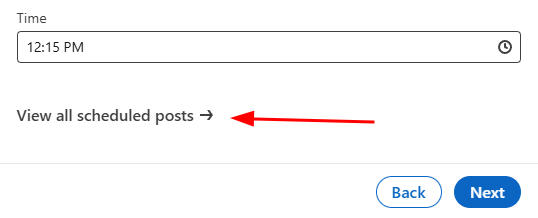
(1) To check whether your posts have been successfully scheduled, you can go to the list of scheduled posts (🕒 clock icon > View all scheduled posts).
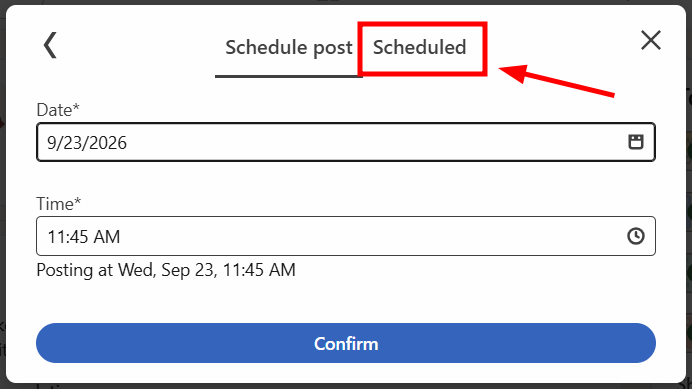
(2) The new LinkedIn editor no longer has the View all scheduled posts button. Instead, the window now displays two tabs: Schedule post and Scheduled. You need to click the Scheduled tab.
Please click the ...show more text in the bottom-right corner. This should trigger the collection of the missing scheduled post.
Next, AuthoredUp stores the date and time you selected when scheduling the post, and once that moment arrives, it assumes the post has been published and marks it as Published. However, it does not have direct confirmation that the post actually went live.
If stats are not displayed under a previously scheduled and now published post and it only shows Published, you can scroll through your Posts & Activity feed to refresh the data. You can find that in the dropdown menu when you click the Me button with your profile picture.
Refresh the entire page and open the AuthoredUp calendar again. All scheduled posts should fall back into place.
This method is also helpful if you frequently reschedule scheduled posts and change their publication dates and times. In some cases, old dates may remain in the calendar, so it is necessary to go through the entire process to refresh and update that data.