
Coauthor is AuthoredUp’s AI writing assistant that helps you create LinkedIn posts in your own voice, refine your drafts, and develop ideas for new content.
This guide walks you through setting up and managing your voice, using Coauthor, and making the most of its features:
Where to find Coauthor
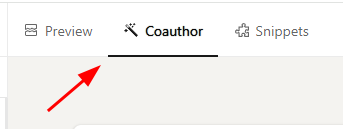
Coauthor lives inside the AuthoredUp editor, right between the Preview and Snippets tabs. It works on both the platform and the extension.
Voice profile setup
To get the most out of Coauthor, start by creating a voice profile for the LinkedIn profile or company page you want to write for. Your voice profile helps Coauthor understand your writing style and generate content that sounds more like you.
Go to the AuthoredUp editor → Coauthor tab and click the Get started button.
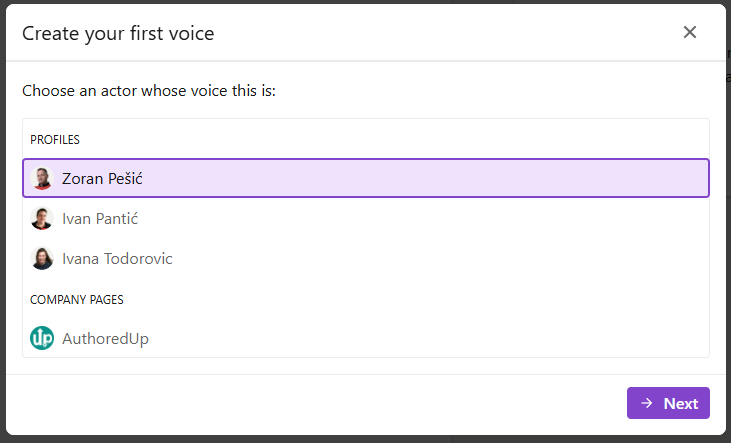
Select the actor you want to create the voice for.
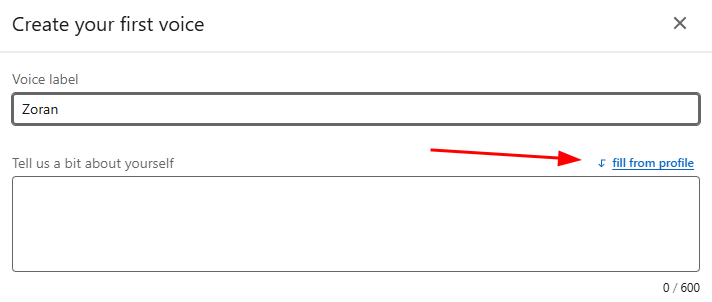
Start by telling us a bit about yourself. You can describe who you are, what topics you usually write about, and who your audience is. You can also use the Fill for profile option to automatically generate this information based on your LinkedIn profile.
Next, select up to 20 LinkedIn posts to use as examples of the writing style you want Coauthor to learn. You can choose your own collected posts, posts from other actors in your organization, or saved posts from other LinkedIn users.
The more relevant examples you select, the better Coauthor can understand and reproduce the writing style you want. You can mix posts from different sources to shape your voice. If you want your voice to sound similar to certain people or company pages you follow, you can select some of your saved posts and include them alongside your own posts.
We will automatically select posts that we believe are good examples, but you can remove any of them and choose different posts from the available list.
If you prefer, you can click Clear all to start without any examples. In this case, you'll see a warning: “An untrained voice will offer a subpar experience.” You can still create the voice and train it later by selecting posts and retraining it.
Once you're happy with your selection, click the Start training button.
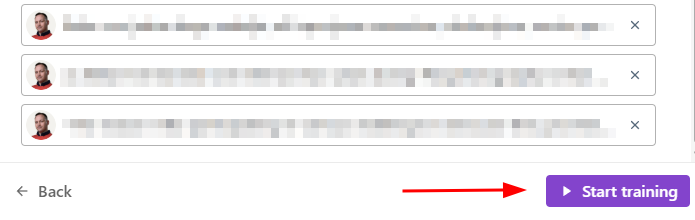
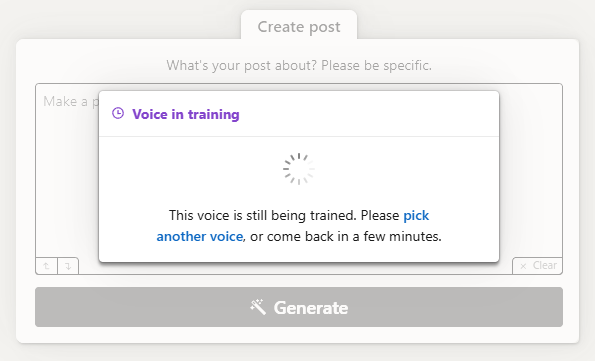
Creating your voice may take a few minutes. You can work on other tasks, but please do not close the tab while your voice is being generated.
Manage voices
After creating your voice, you can manage it from the Voices button in the top-right corner of the Coauthor interface.
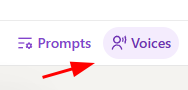
The Manage voices section allows you to view and manage all your created voices. For each voice, you can update your profile information, including details about yourself and the topics you want to write about.
You can also create a new voice, delete an existing one, or retrain a voice using a new selection of posts. Retraining allows you to update your voice and make it better reflect your preferred writing style.
Manage saved prompts
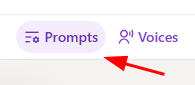
You can access your saved prompts by clicking the Prompts button in the top-right corner of the Coauthor interface.
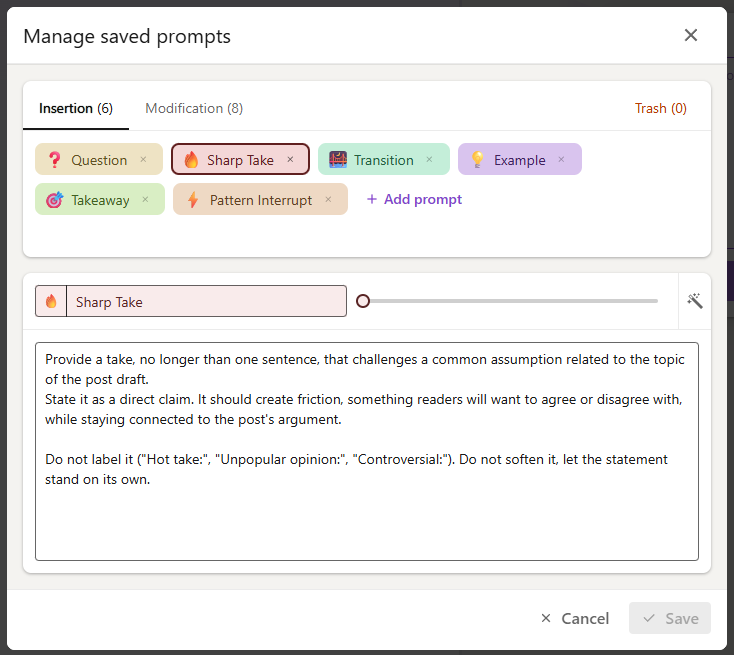
The Manage saved prompts window includes a collection of predefined prompts for both content insertion and content modification, helping you quickly generate or refine your posts.
You can also create and save your own custom prompts, making it easier to reuse your favorite instructions whenever you work with Coauthor.
Using your voice
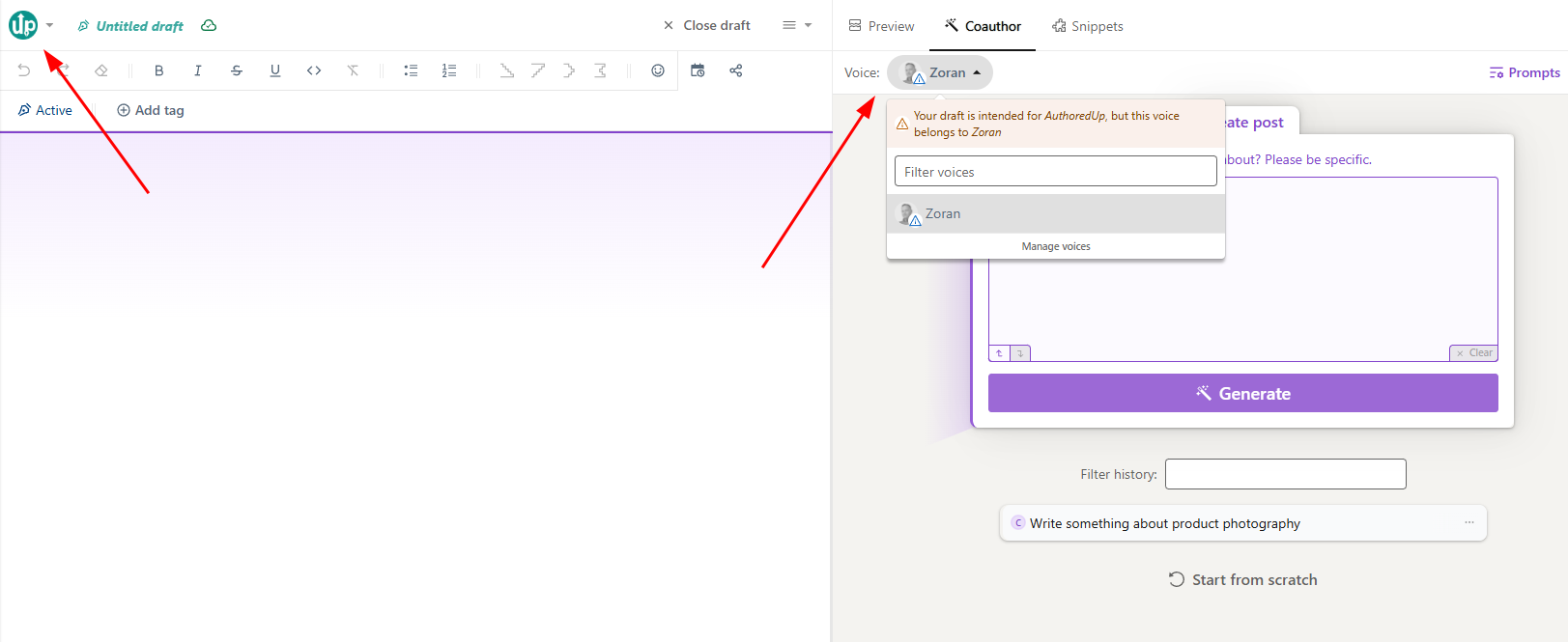
Before generating a draft, make sure the selected actor matches the voice you want to use. For example, if you're writing a draft for your company page, make sure you've selected the voice that was trained for that company page.
If the selected actor and voice don't match, Coauthor will display a warning message. This helps prevent you from accidentally generating content using the wrong voice.
You write, Coauthor helps, you decide
Coauthor doesn’t take over your post. You pick what it does, and when. There are four things you can ask for:
- Generate
Write your idea and add your notes, a link, or one of your posts. You get a full first draft. - Modify
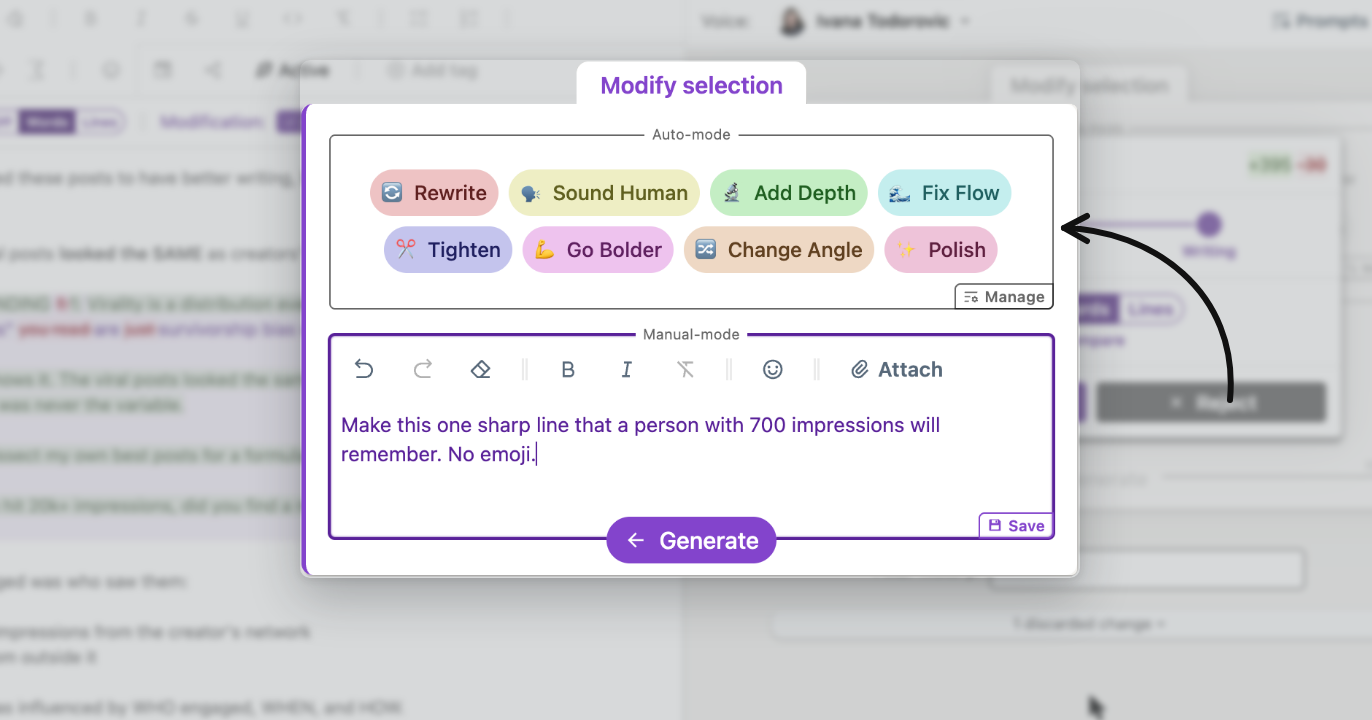
Select a paragraph or the whole post, then pick Tighten, Sound Human, Go Bolder, or write your own instruction. You see exactly what changed before you keep it. - Insert
Put your cursor where something is missing. You get 3 options for what could go there. - Hook and ending
You also get three options for the first line, and three for the last. Keep one, or none.
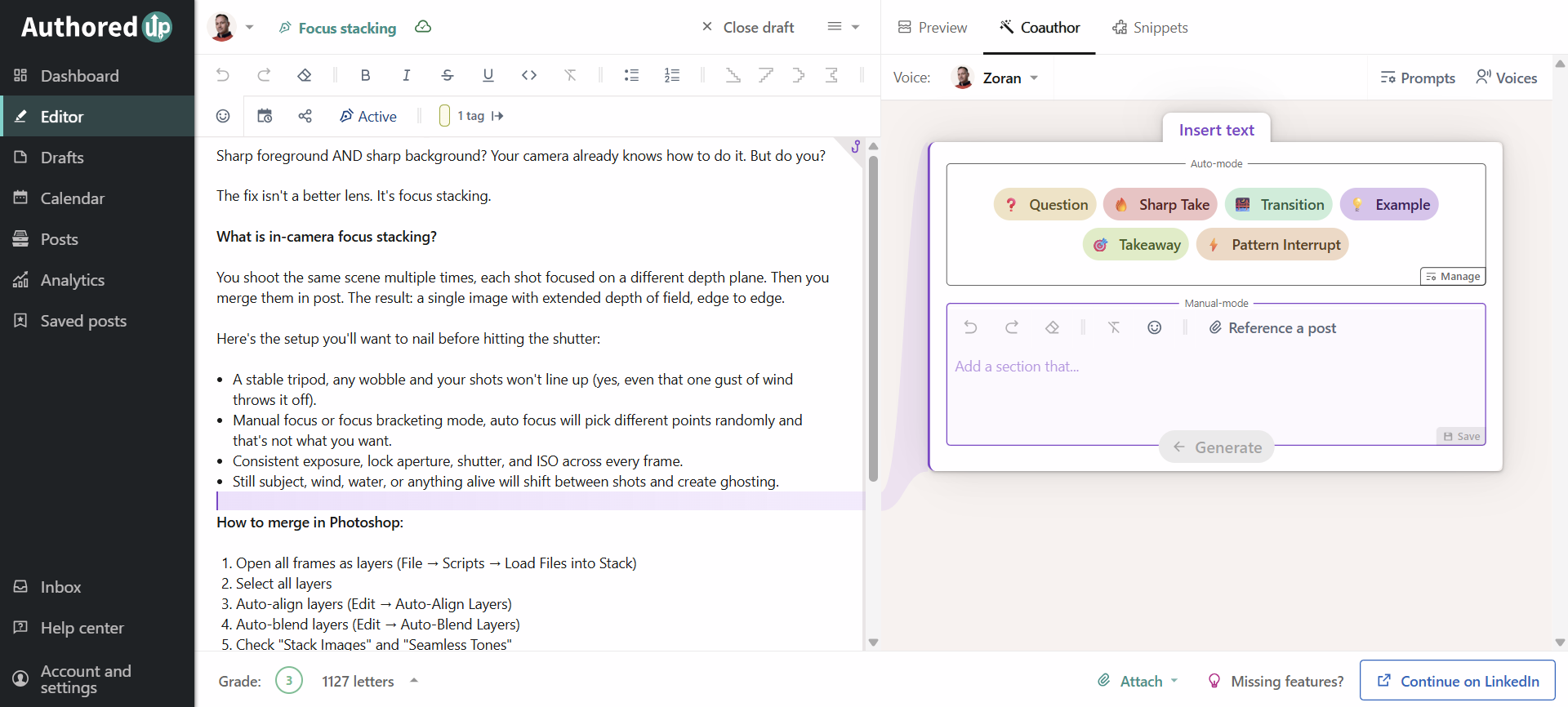
In between, it’s your editor. Type, cut, and rewrite whatever you want, then ask Coauthor again.
And nothing gets lost. Every version stays in the history, so you can compare two and bring back the one you liked.
It also writes in the language of your draft.
Credits
The number of credits available to you depends on your license:
- Trial: 10 credits for the entire trial period. Trial credits do not renew.
- Individual plan: 50 credits per month.
- Business plan: 50 credits per subscription slot per month, added to a shared credit pool for the organization.
For example, a Business plan with five subscription slots includes 250 credits per month for the organization to share. The total is based on the number of slots in the subscription, not the number of active organization members.
Credit add-ons
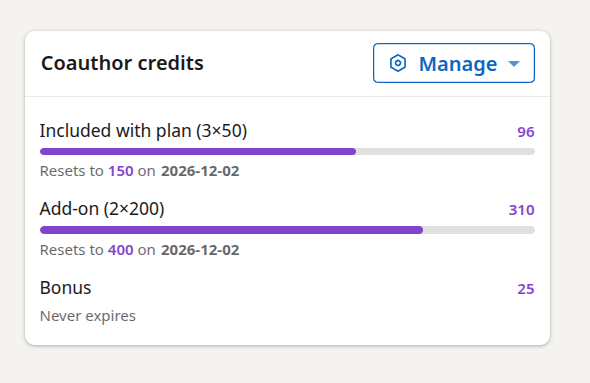
If you need more credits, you can purchase additional credit add-ons. Each add-on provides 200 credits, and you can purchase multiple add-ons.
Credits refresh each month on your license’s credit renewal date. If you purchase an add-on partway through a credit cycle, your first allocation may be prorated based on the time remaining in that cycle. Unused add-on credits do not carry over to the next cycle.
Credit renewal
Plan credits renew monthly on the renewal date assigned to your license, regardless of whether you have a monthly or annual subscription. Unused credits do not roll over to the next cycle.
Add-on credits also renew monthly, and unused credits do not roll over to the next cycle. If you cancel an add-on, its credits remain available during the already-paid period. The add-on will stop renewing at the end of that period, and any remaining credits will be removed when the allocation expires.
You can check your available credit balance in Account and Settings, under the User tab for Individual plans or the Organization tab for Business plans.
Good to know
- Some actions take longer than usual. Post generation runs through multiple models behind the scenes to better understand your content and voice. Give it a moment.
- It works in your language. If you write in German, Coauthor responds in German. It follows the language of your draft.
- Your content is not used for AI training. Your posts are only used to build and refine your personal voice profile.
- Hooks & Endings are gone. They have been replaced by Coauthor, which covers the same ground and more.
VIDEO: How to use Coauthor
Feedback
Before today, Coauthor had three beta releases and hundreds of beta users. What they told us is in the version you get now.
Now it’s your turn. Train your first voice and write one post with it.
If something looks off or doesn't make sense, message us via the website. If you prefer, you can also send a DM to Ivana Todorovic, AuthoredUp cofounder. 🙏
We may also reach out to you via LinkedIn DM or email with questions about your usage.