
Slack can be connected to AuthoredUp to receive notifications outside AuthoredUp.
Follow the steps below to connect your Slack workspace and choose which notifications you want to receive.
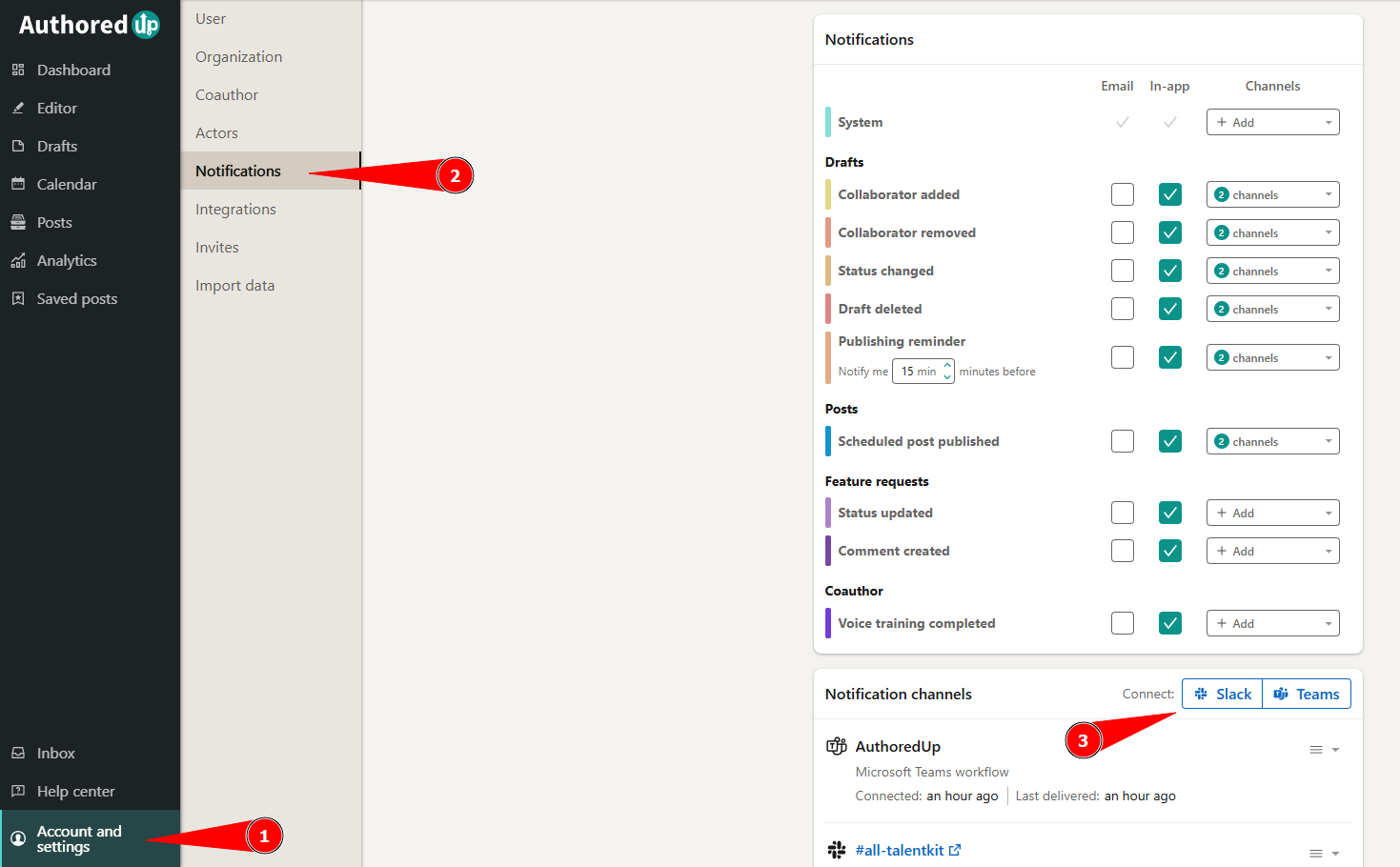
1. Go to Account and Settings and open the Notifications tab.
2. Scroll down to the Notification channels section and click Connect Slack.
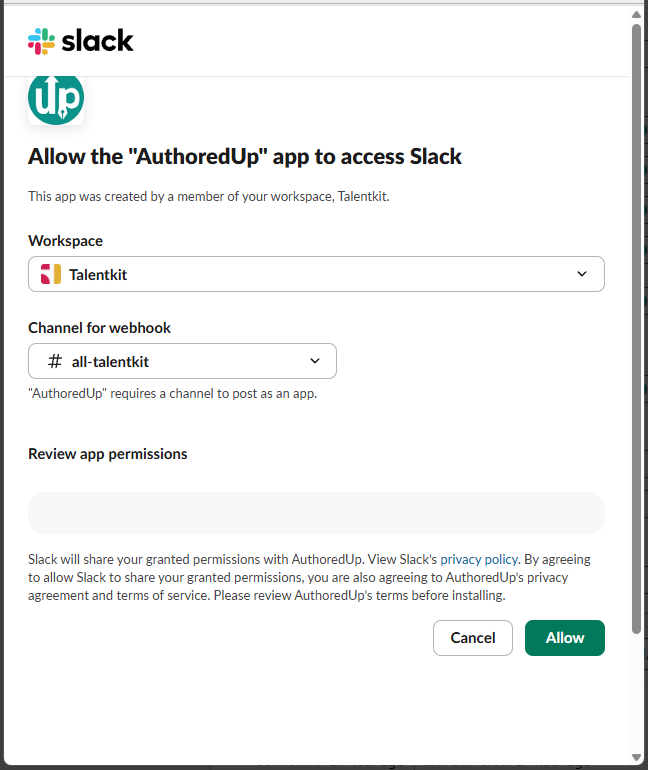
3. In the Slack authorization window, select the Workspace you want to connect.
4. Select the Channel for webhook where you want to receive AuthoredUp notifications.
5. Click Allow to authorize the AuthoredUp app and complete the connection.
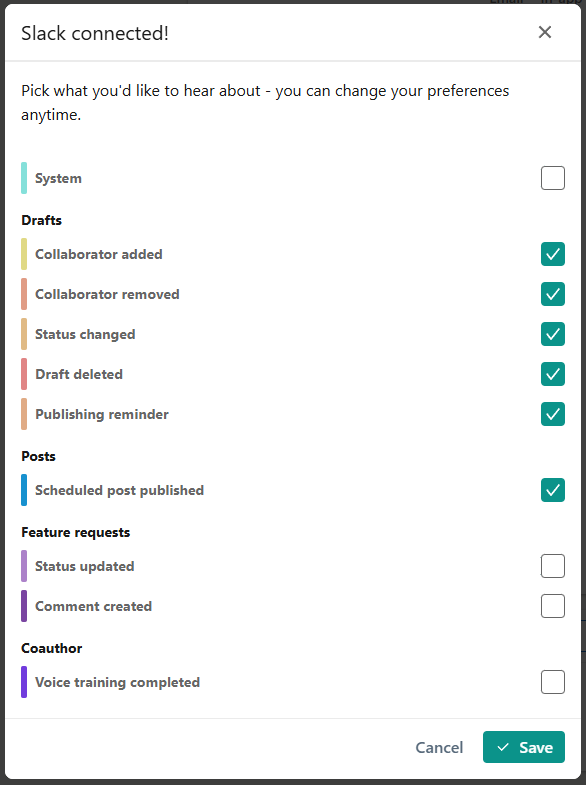
6. In the Choose notifications window, select the types of notifications you want to receive in this Slack channel.
7. Click Save.
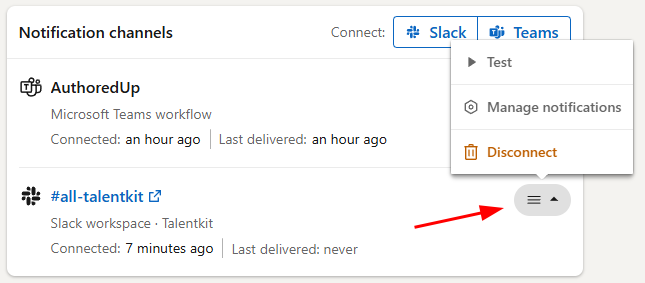
Your Slack channel will now appear as a connected notification channel in the Notification channels section.
Manage notification channels
For each connected Slack or Microsoft Teams channel, you can:
- Send a test notification.
- Choose which notification types it receives.
- Remove the channel.
If a channel stops accepting notifications, AuthoredUp will automatically disable it. You'll receive an inbox notification when this happens, with a Manage channels button that takes you back to the Notifications tab.
After fixing the destination, use the Test option from the channel's menu. If the test notification is successful, the channel will be enabled again and notifications will resume.