
Microsoft Teams Workflows allow you to create an incoming webhook URL that can be used to send notifications from AuthoredUp to a Teams channel.
Follow the steps below to create a webhook URL that you can use to connect your Teams channel with AuthoredUp.
1. Open Microsoft Teams and click the + icon in the left sidebar.
2. Select Apps, then search for and open Workflows.
3. In the Workflows window, go to All templates and search for Send webhook alerts to a channel.
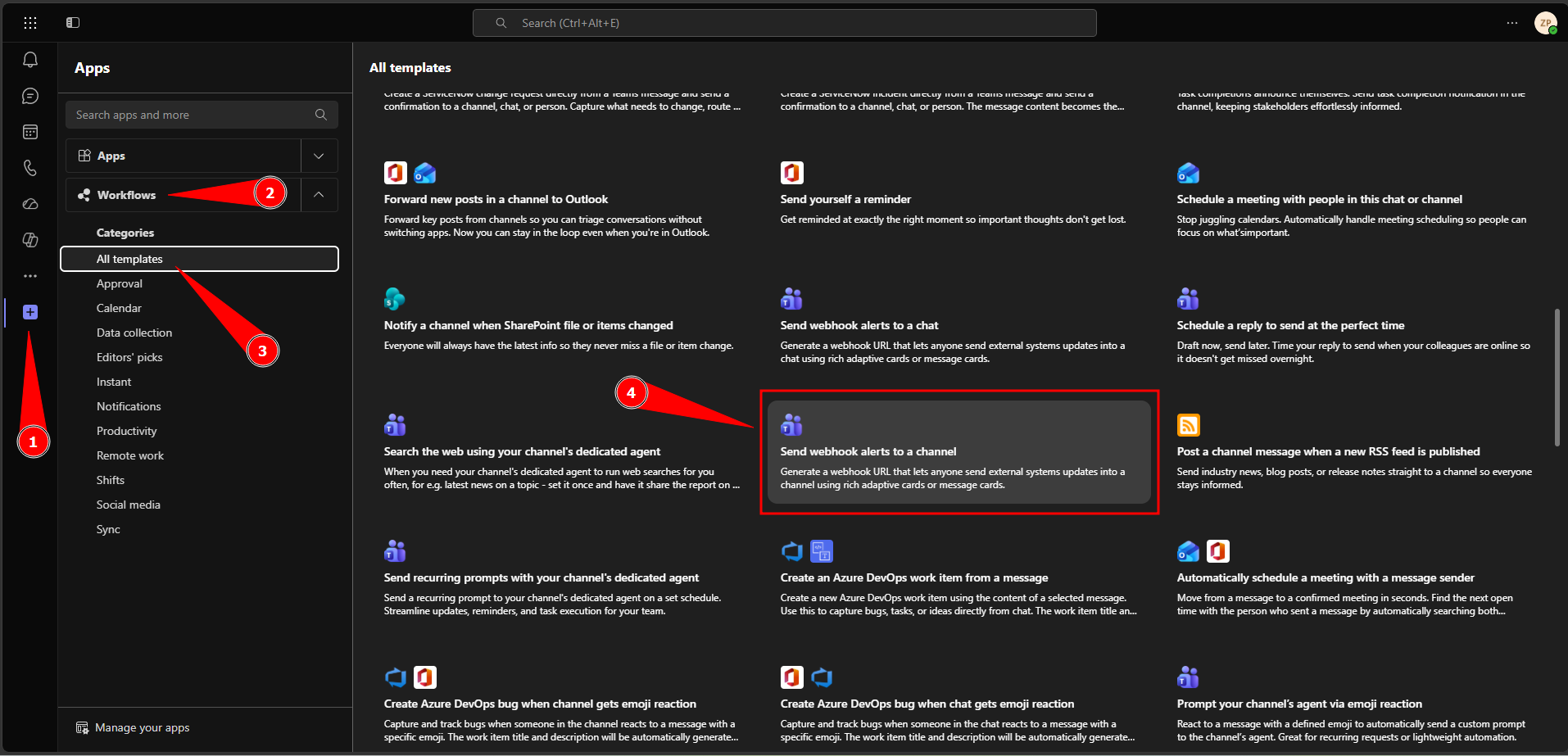
4. Select the template and click Next.
5. Wait until Microsoft Teams completes the required authentication process. This may take a moment. Once the setup is ready, you can continue with the next steps.
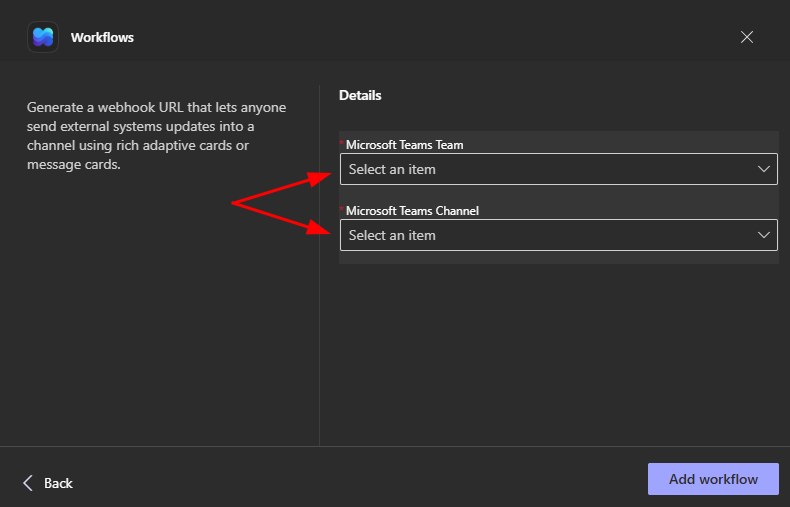
6. Select the Team and Channel where you want to receive notifications.
7. Click Add workflow to create the webhook.
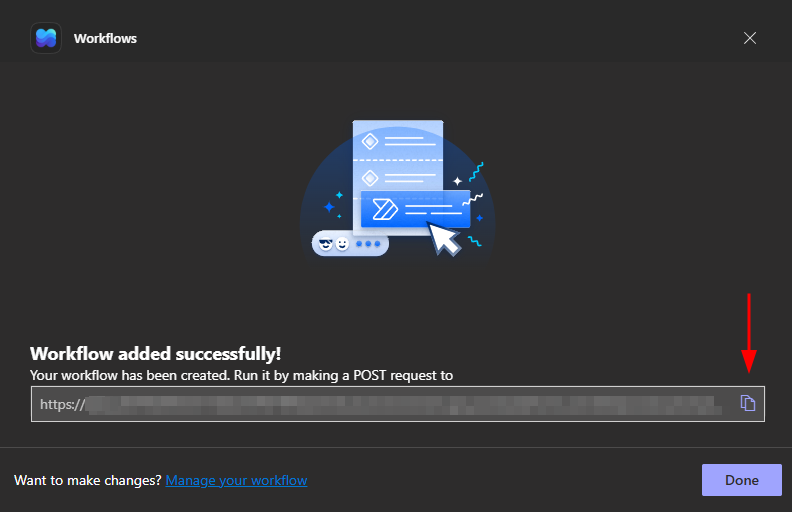
8. Once the workflow is created, click Copy webhook link to copy the generated webhook URL.
Manage your workflows
After creating a workflow, you can access and manage it from the Workflows section in Microsoft Teams.
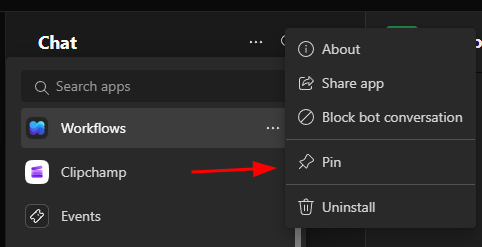
To manage your existing workflows, click More options (⋯) in the left sidebar and select Workflows.
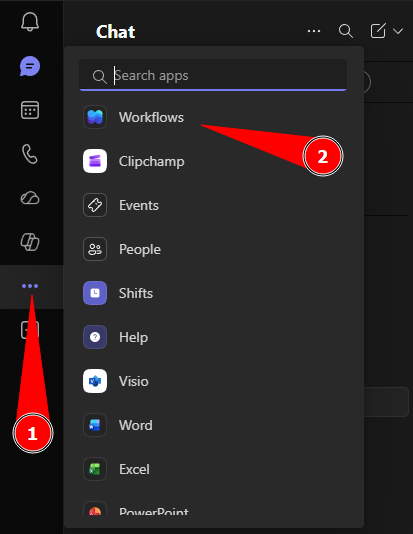
Tip: You can pin Workflows to keep it easily accessible in the Teams sidebar.
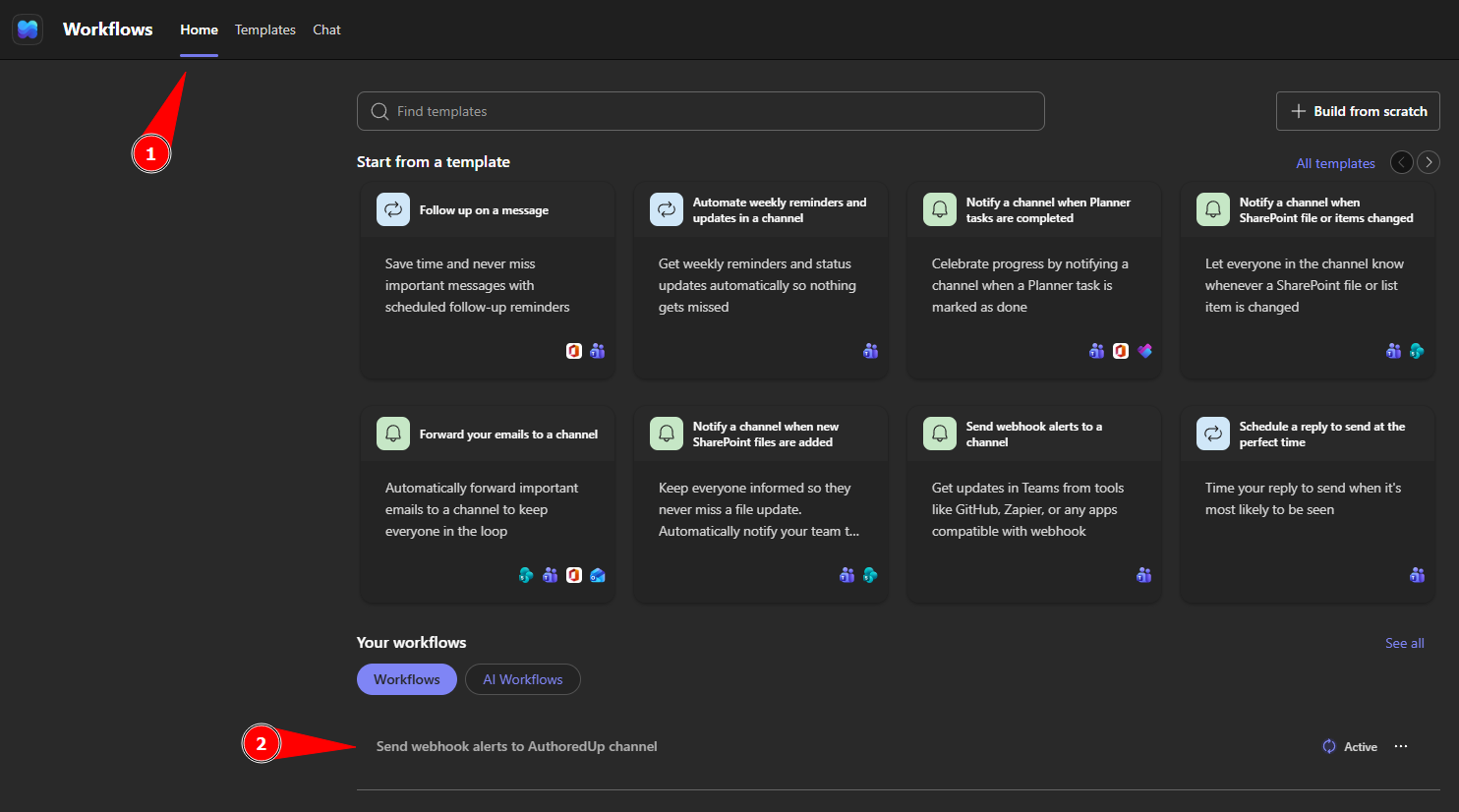
On the Home tab, you can find all your existing workflows under the Your workflows section, below the templates.
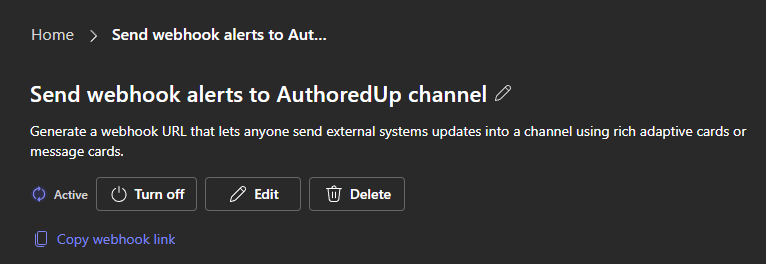
Select the workflow you want to manage to access available options.
Select a workflow to rename, turn off, edit, delete, or copy its webhook link.
Connect your Teams workflow to AuthoredUp
Once you've created your workflow and copied the webhook URL, you can connect it to AuthoredUp.
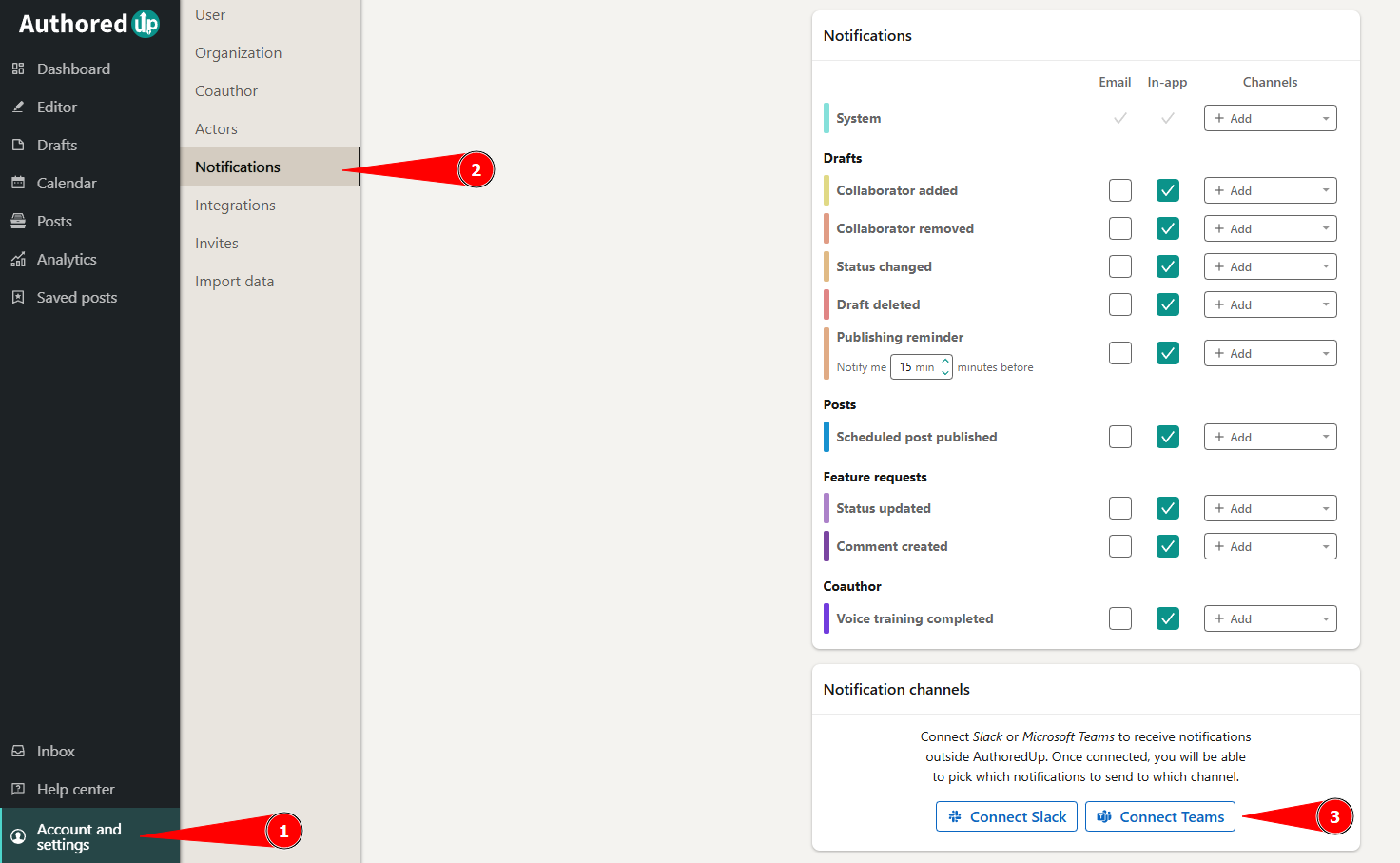
1. Go to Account and Settings and open the Notifications tab.
2. Scroll down to the Notification channels section and click Connect Teams.
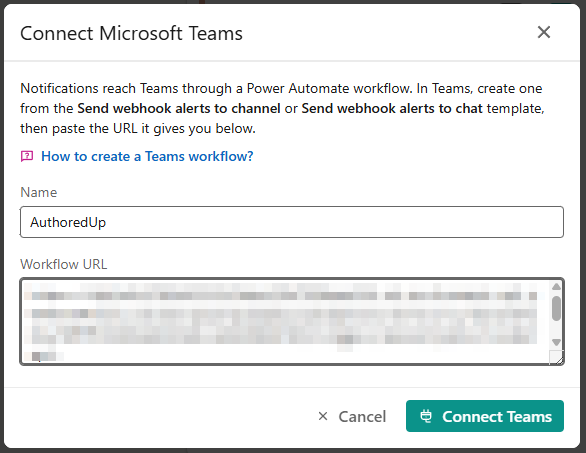
3. Enter a name for the channel in the Name field. This name helps you identify the connected Teams channel in AuthoredUp.
4. Paste the webhook URL you copied from Microsoft Teams into the Workflow URL field.
5. Click Connect Teams.
6. In the Choose notifications window, select the types of notifications you want to receive in this Teams channel.
7. Click Save.
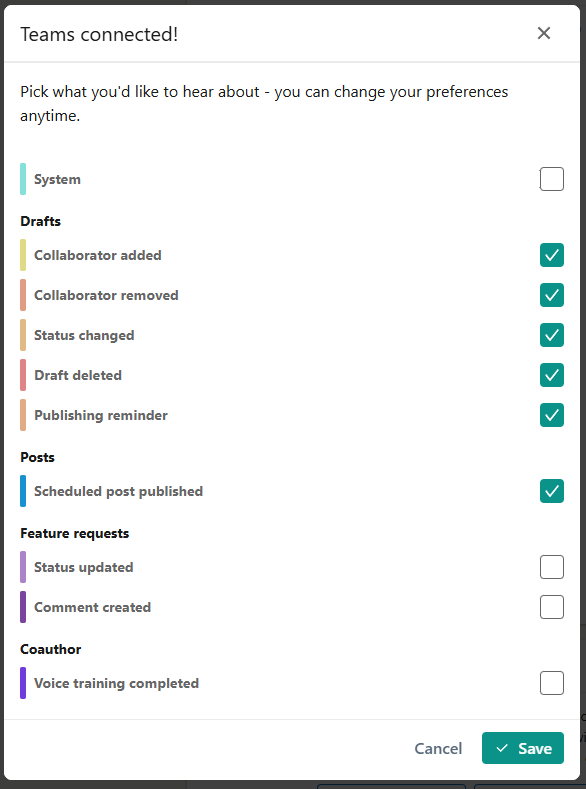
Your Teams workflow will now appear as a connected notification channel in the Notification channels section.
Manage notification channels
For each connected Slack or Teams channel, you can:
- Send a test notification.
- Choose which notification types it receives.
- Remove the channel.
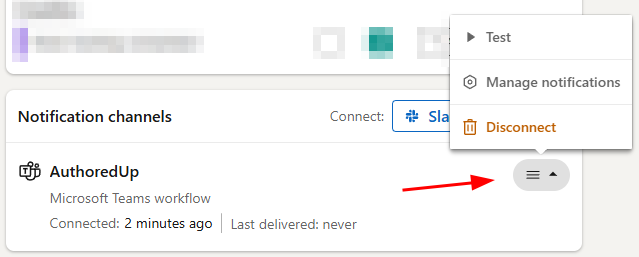
If a channel stops accepting notifications, AuthoredUp will automatically disable it. You'll receive an inbox notification when this happens, with a Manage channels button that takes you back to the Notifications tab.
After fixing the destination in Microsoft Teams, use the Test option from the channel's menu. If the test notification is successful, the channel will be enabled again and notifications will resume.