
Cohorts let you group and save Actors (personal profiles and company pages) into custom groups for easier data management. Once created, Cohorts can be quickly reused across AuthoredUp to filter, analyze, and compare performance data for groups of Actors without manually selecting the same Actors every time.
For example, you can create Cohorts to group Actors by department, role, or any other category that fits your workflow:
- Marketing
- Sales
- Leadership
- Customer Success
- Company Pages
Creating a Cohort
To create a new Cohort:
1. Go to Account and Settings.
2. Open the Actors tab.
3. Find the Cohorts section.
4. Click Create a cohort button.

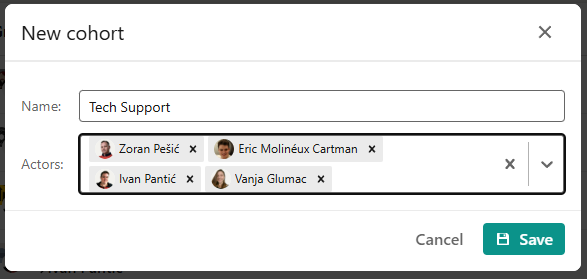
5. In the New cohort window, enter a name for your Cohort and select the Actors you want to include.
6. Click Save to create your Cohort.
Managing Cohorts
Once a Cohort has been created, it will appear in the list. From this section, you can create additional Cohorts by clicking the New cohort button.
You can also manage existing Cohorts using the available actions:
- Edit — update the Cohort name or add/remove Actors from the Cohort.
- Delete — delete the Cohort for all members of your organization.

What happens if a Cohort contains an unlicensed Actor?
A Cohort that contains an unlicensed Actor cannot be selected in filters across AuthoredUp.
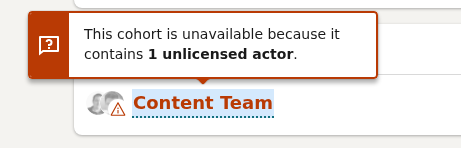
If a Cohort includes an unlicensed Actor, you can either remove the Actor from the Cohort or add an additional license to your Business plan to make the Actor available.
Once all Actors in the Cohort are licensed, the Cohort will become available for selection in filters again.
Who can use Cohorts?
Cohorts are available only on the Business plan.
Only Admins and Managers can create, view and manage Cohorts within their organization.
Using Cohorts
Once created, Cohorts can be used across AuthoredUp to quickly access, filter, and analyze data for groups of Actors.
You can use them in:
- Analytics — analyze and compare performance data for selected groups of Actors.
- Team Analytics — review team performance and compare results between different Cohorts.
- Calendar — view posts created by Actors from a selected Cohort.
- Posts tab — browse posts from Actors grouped within a Cohort.
For example, you can create a Marketing Cohort and use it across Analytics, Team Analytics, Calendar, and Posts tab to quickly view content and performance data for your marketing team.
Expanding and collapsing Cohorts
Cohorts can be used in Actor filters across AuthoredUp to quickly switch between viewing groups of Actors and individual Actors (profiles or company pages).
When a Cohort is selected in the Actor filter, you can choose Expand cohort into actors to view and select the individual Actors included in that Cohort.
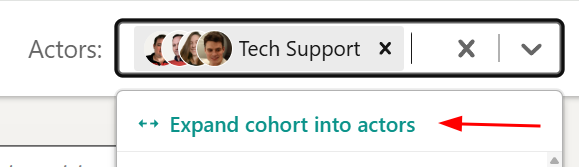
This is especially useful in Team Analytics and Leaderboard views, where you may want to review individual Actor performance instead of the Cohort's combined results.
You can choose Collapse actors into cohort to group them back into a Cohort.

If you modify the current selection by adding or removing Actors, you can save the updated group as a new Cohort by selecting Save X actors as cohort.
